Nervecentre V9.0 Help for Users
Viewing and managing a patient's appointments
From Patient Detail > Patient admin, you can view and manage a patient's future appointments.
Depending on your permissions, you can manage multiple appointments from Outpatients > Manage > Appointments.
Read more about managing multiple appointments
Viewing and managing a patient's appointments on a mobile
You can't do this on a mobile.
Viewing and managing a patient's appointments on a desktop
 Viewing a patient's appointments
-
Select Outpatients > Clinic List > double-click on a patient's name > Patient Detail.
Depending on your permissions, you might need to select Go to patient record.
-
From Patient Detail > Patient admin > Show pathways, select Appts.
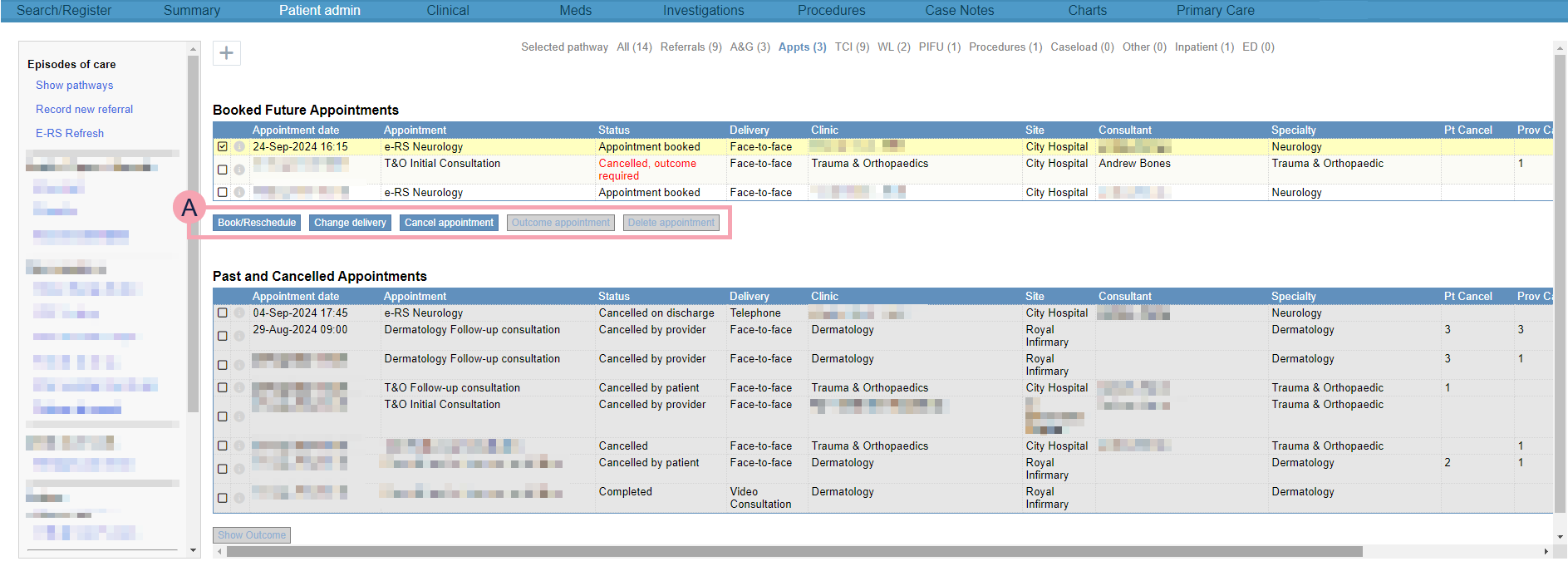
Overview of Patient admin > Show pathways > Appts
|
+ |
Select to book a single follow-up appointment, repeating follow-up appointments, a series of follow-up appointments, or a cross-specialty appointment. |
|
Booked Future Appointments |
Shows a list of the patient's future appointments. Select an appointment to view what actions you can perform. |
|
|
Displays next to appointments that are linked. If you book repeating appointments, or a series of appointments, those appointments are automatically linked. You can manually link appointments. Read about booking repeating appointments |
|
|
Select to view details about the appointment, including the history. Read more about viewing an appointment's details You can add notes to the appointment. |
|
|
The actions available for the selected appointment. These depend on the appointment's status. Read more about statuses for appointments Read more about deleting appointments Read more about rescheduling appointments Read more about changing an appointment's delivery method |
|
Past and Cancelled Appointments |
Shows past and cancelled appointments. To view the outcome of an appointment, select an appointment, then select Show Outcome. |
 Viewing details about an appointment
-
Select Outpatients > Clinic List > double-click on a patient's name > Patient Detail.
Depending on your permissions, you might need to select Go to patient record.
-
From Patient Detail > Patient admin > Show pathways > Appts, select next to an appointment.
Adding a note to an appointment
-
Select Outpatients > Clinic List > double-click on a patient's name > Patient Detail.
Depending on your permissions, you might need to select Go to patient record.
-
From Patient Detail > Patient admin > Show pathways > Appts, select next to an appointment.
-
Select Add Note.
-
Enter any notes.
-
Select Save.
Sending an ad hoc letter or SMS message about an appointment
You can send an ad hoc letter or SMS message about an appointment from Patient Detail > Patient admin. Depending on your permissions, you can also send ad hoc letters and SMS messages about appointments from Outpatients > Manage.
Read more about sending ad hoc letters and SMS messages from Manage
Read more about viewing SMS messages from Manage
To send an ad hoc letter or SMS about an appointment:
-
Select Outpatients > Clinic List > double-click on a patient's name > Patient Detail.
Depending on your permissions, you might need to select Go to patient record.
-
From Patient Detail > Patient admin > Show pathways > Appts, select an appointment.
-
Select Send Appointment Letter.
-
From Letter, select the letter you want to send.
Information about the letter appears. This includes:
-
The letter's name
-
The recipient of the letter
-
How the letter is delivered
-
When Nervecentre sends the letter
For example, immediately, at a set time, or after a delay.
-
Any attachments automatically added to the letter
-
-
Optional: edit the name of the letter.
-
Optional: to add attachments to the letter:
-
Select .
-
Search for an attachment, or browse folders until you find an attachment.
-
Select an attachment.
-
Select .
-
Select outside the dialogue box.
-
To save the attachments you added, select Yes.
-
-
To preview the letter, select Preview.
-
To sign a letter, or to remove a signature from a letter:
-
Select Sign off.
-
Select an option.
-
To sign the letter with your name, select Sign.
-
To sign the letter for someone else, select Sign as, then select their name.
-
To remove a signature from the letter, select Un-sign.
-
-
-
Send the letter.
-
To send the letter after any specified delay, select Send.
-
To send the letter immediately with no delay, select Send without Delay.
-
Linking appointments
If you booked repeating appointments, or a series of appointments, those appointments are automatically linked, and displays next to those appointments.
You can also manually link appointments. You might do this if you booked two separate appointments, but you want to show that those appointments are linked.
-
Select Outpatients > Clinic List > double-click on a patient's name > Patient Detail.
Depending on your permissions, you might need to select Go to patient record.
-
From Patient Detail > Patient admin > Show pathways > Appts > Booked Future Appointments, select an appointment.
-
Select Link.
-
Select the appointment you want to link to.
displays next to the appointments to show they are linked.
Unlinking appointments
You can unlink linked appointments to remove and show that the appointments are no longer linked.
-
Select Outpatients > Clinic List > double-click on a patient's name > Patient Detail.
Depending on your permissions, you might need to select Go to patient record.
-
From Patient Detail > Patient admin > Show pathways > Appts > Booked Future Appointments, select one or more linked appointments.
displays next to linked appointments
-
Select Unlink > Yes.
no longer displays next to the appointments to show they are no longer linked.
Did you find this article helpful? Yes No
Sorry about that. Our help is a work in progress and we welcome any feedback.
Why wasn't this helpful? Please select one reason:
Great!
Thanks for taking the time to give us some feedback.